







 Save
Save
Sunday roast list, chalkboard menu inspo
Cafe Interior Ideas
 Viral video generator
AI-edited UGC promo videos from your app
UGC creator marketplace
Real human clips in reusable packs
Viral video generator
AI-edited UGC promo videos from your app
UGC creator marketplace
Real human clips in reusable packs
 Scheduler
Plan and queue posts across 11 networks
Scheduler
Plan and queue posts across 11 networks
 AI scheduler
Let an agent pick the slots and write the copy
AI scheduler
Let an agent pick the slots and write the copy
 Management
Accounts, assets, and approvals in one workspace
Management
Accounts, assets, and approvals in one workspace

Post through dashboard or use with your AI Agent
Works with Claude, ChatGPT, OpenClaw




Pick a date, write the caption, and see your whole Pinterest calendar in one place. Switch between day, week, and month views, and filter by account to see exactly what is scheduled where.
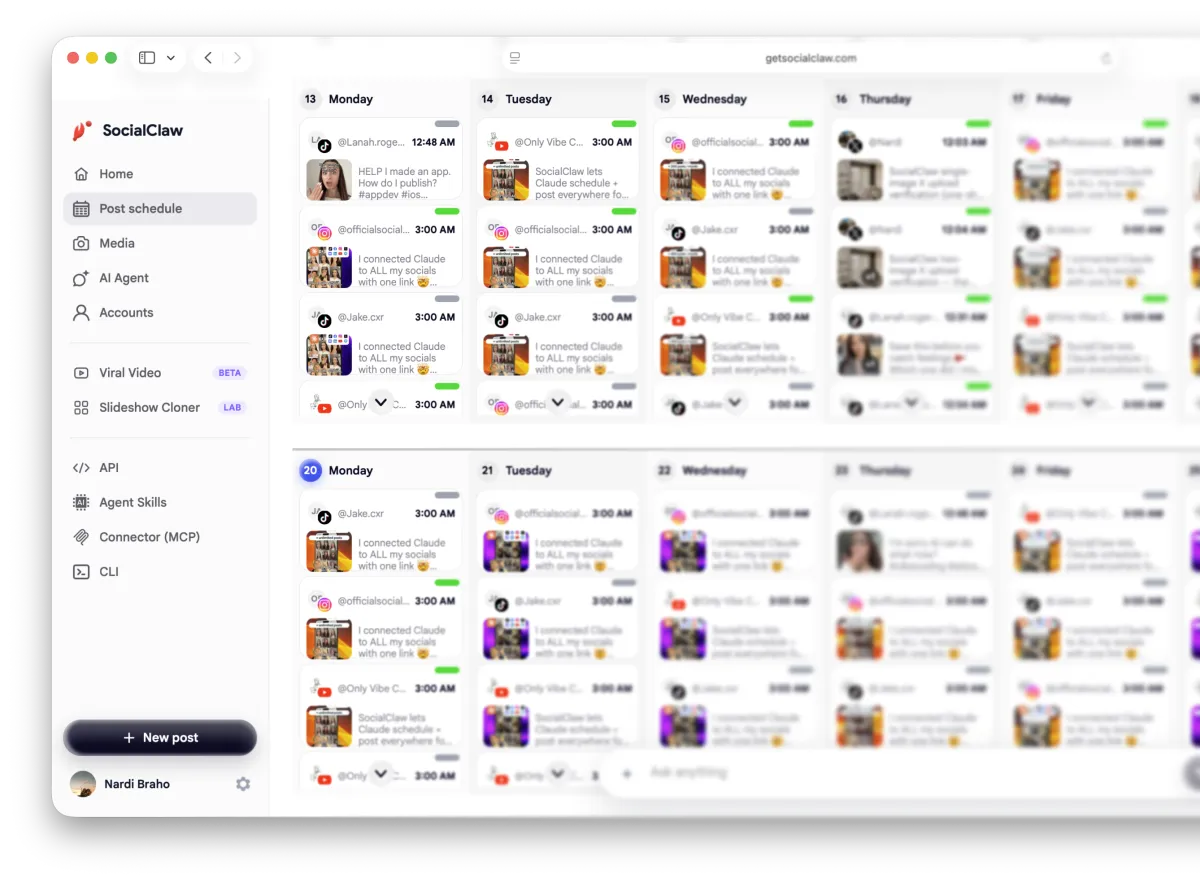
Upload an image or a video once and reuse it across every scheduled Pinterest post. SocialClaw hosts it for you, so Pinterest always has what it needs the moment your post goes out.

Generate images, video, and voice inside the workspace, then schedule the result straight to Pinterest without leaving the dashboard.

“Hi, this is
Adam speaking.”

Simply install the skill with this command
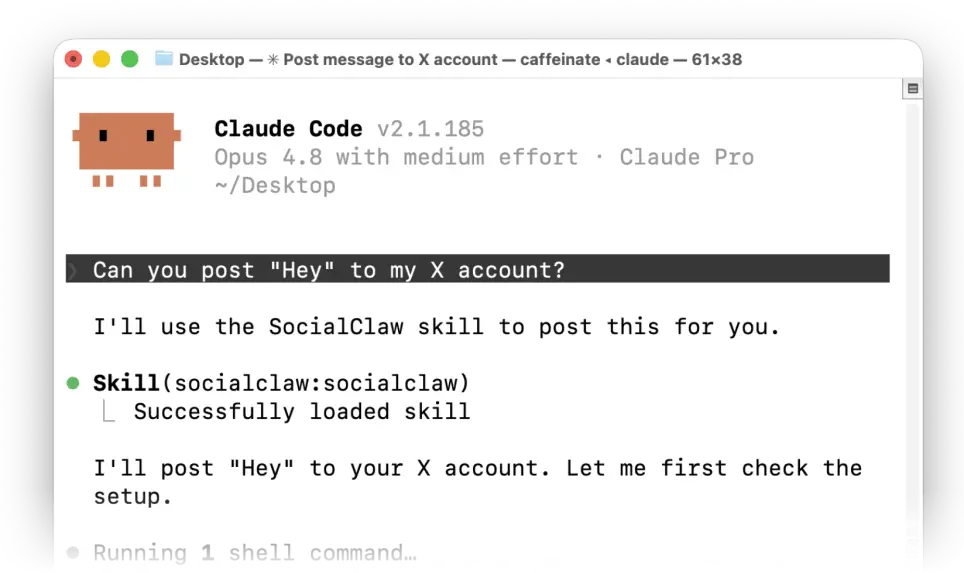
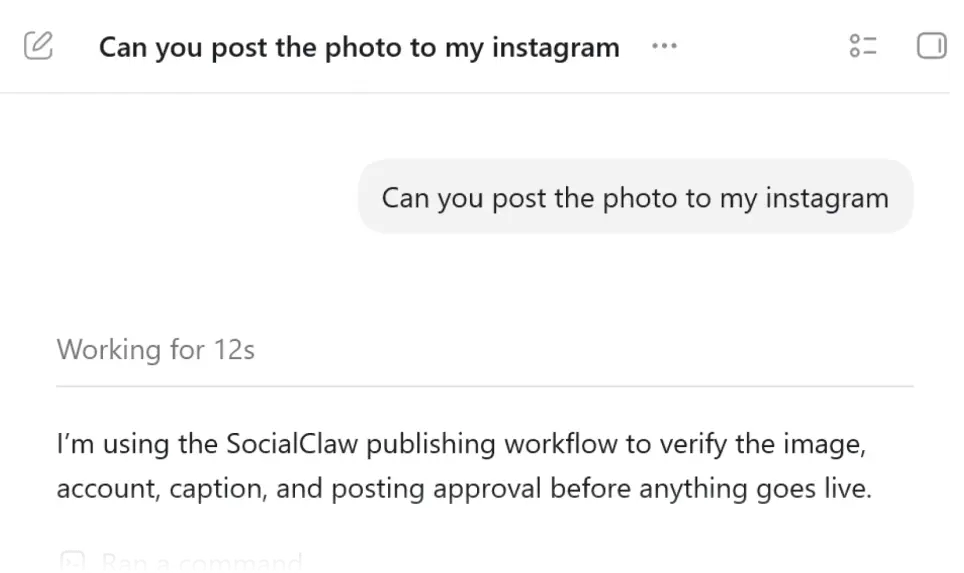
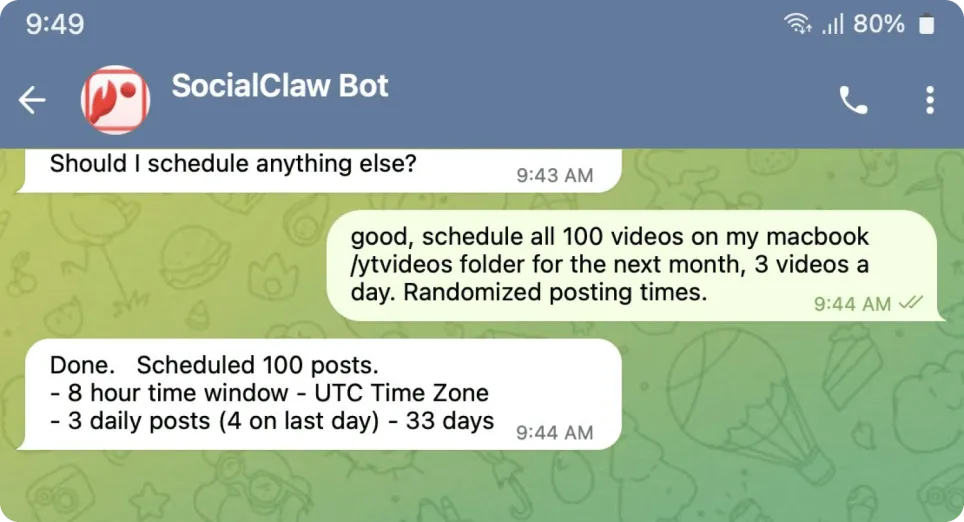
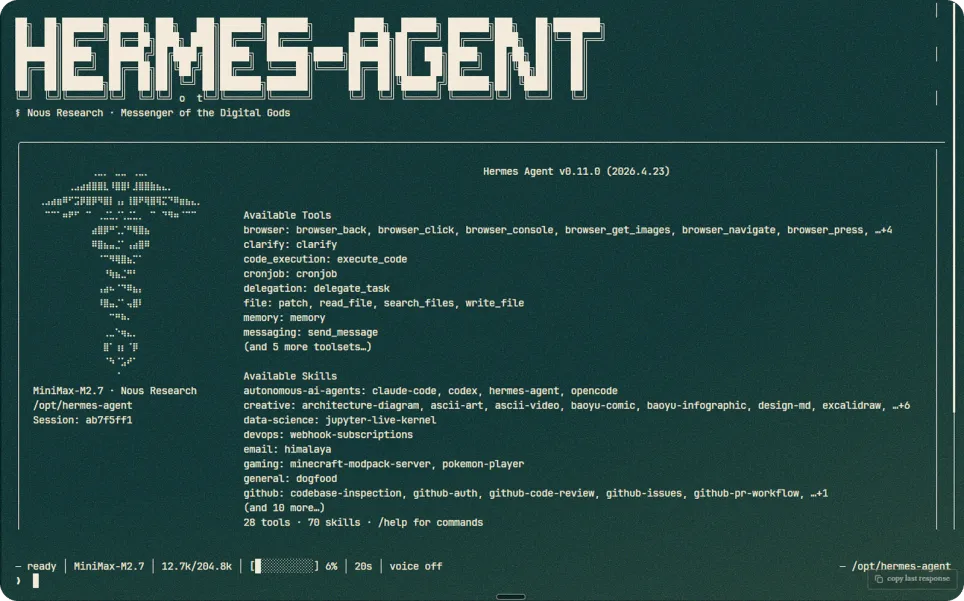
Same workspace, same connected account. Pick the surface that fits your stack.
Real quotes from Reddit, G2, Trustpilot, and Instagram.
“I can prepare the content once and let SocialClaw handle the distribution.”
 Instagram
“If SocialClaw sees this just know you changed my entire workflow girl.”
 r/mcp
r/mcp
“Since I try market my iOS apps, definitely SocialClaw… because then Claude can post to social media for me.”
r/socialmedia
“Most schedulers still feel like old calendar tools with an AI caption button added on top. SocialClaw feels more built around the newer AI era.”
r/automation
“SocialClaw if you want to schedule posts to social media.”
“SocialClaw handles the repetitive publishing work: uploading media, managing connected accounts, scheduling posts, publishing them, and retrying when something fails.”
r/SocialMediaManagers
“I used to use stuff like Buffer etc, but I use SocialClaw with my AI agent. I just tell it to schedule like 100 videos for the next month.”
r/AI_Agents
“It has an OpenClaw skill, or use it via API, CLI, or even the web dashboard.”
r/openclaw
“I have it install the SocialClaw skill, linked my social media accounts, and it actually has approval to post on my socials for me.”
Connect once, then schedule and publish everywhere from the same workspace.










Any Pinterest account connected through the SocialClaw OAuth flow. Once connected, it is available for scheduling from your dashboard, the API, the CLI, or an AI agent.
Standard pins, video pins, or multi-image pins — one video or up to five images per pin, plus an optional destination link and alt text.
Yes. Pinterest in SocialClaw is board-centric — every pin publishes to a specific board on your connected account, and you can optionally target a section within that board too.
Yes. Pick any future date and time on the calendar, write your pin title and description, attach your image or video, and SocialClaw publishes it automatically when the time comes.
Yes. Connect as many Pinterest accounts as your plan supports, then use the account filter in your calendar to see what is scheduled for each one, or view every account together in a single calendar.
Yes. Send them an invite link from your dashboard and they connect their own Pinterest account directly with Pinterest, without ever sharing a password with you. Once they finish, the account shows up connected in your workspace and you can schedule for it like any other account.
No. Upload your file once to your SocialClaw workspace and reuse it across as many scheduled pins as you like. SocialClaw takes care of hosting it so Pinterest always has what it needs the moment your pin goes out.
Yes. Connect your account once in the dashboard, then Claude, ChatGPT, Codex, or OpenClaw can schedule and publish for you through the hosted MCP server, the API, or the CLI, all using the same workspace key. Your Pinterest credentials stay with SocialClaw and are never shared with the agent.
SocialClaw retries automatically when the failure is temporary, such as a brief connection issue with Pinterest. If a pin cannot go out, you will see it flagged in your dashboard so you can review and fix it instead of assuming it published.