























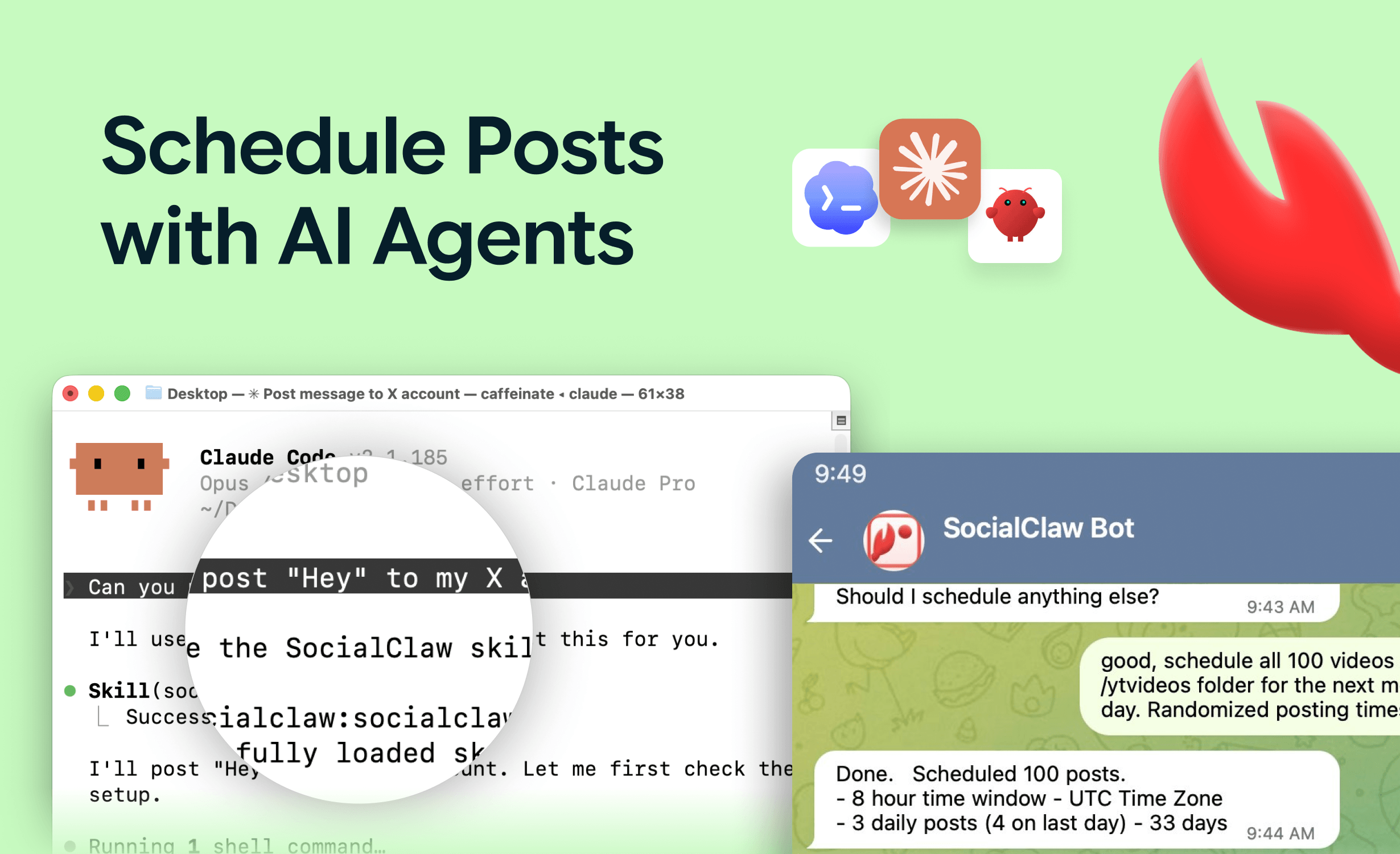
You don't need to be a developer to give Claude Desktop the ability to post to your social accounts. You need one JSON snippet, one API key, and about three minutes — and from then on, "turn these notes into a LinkedIn post and an X thread, schedule both for Tuesday at 9am" is something Claude actually does, not just drafts.
Claude Desktop extends through connectors — external tools Claude can call via MCP (Model Context Protocol). Out of the box it has none for social media, because Claude has no access to your X, LinkedIn, or Instagram accounts. A social publishing connector closes that gap: you connect your accounts once via OAuth to a publishing service, and Claude gets tools to draft, schedule, publish, and verify.
This guide is written for the marketer or founder who lives in Claude Desktop, not the terminal. It covers the exact setup, the prompts that work on day one, and the one habit — review before publish — that keeps an AI connector from ever becoming a liability.
Nardi Braho - July 4, 2026
TL;DR: Sign up at SocialClaw, connect your social accounts via OAuth, copy your workspace API key, and paste the JSON block below into Claude Desktop's config file. Restart Claude Desktop, ask "list my connected social accounts" to confirm it works, then adopt the two-step habit: draft and review first, publish second.
What can Claude Desktop actually do with a social connector?
Once connected, Claude Desktop can call 17 publishing tools against your real accounts. In plain terms:
| You say | Claude does |
|---|---|
| "What accounts do I have connected?" | Lists your connected accounts across platforms |
| "What can I post to my Instagram?" | Checks the account's capabilities (formats, media rules) |
| "Draft a launch post for X and LinkedIn from these notes" | Writes platform-specific drafts in the chat for your review |
| "Schedule both for Tuesday 9am" | Validates the posts against each platform's rules, then schedules |
| "Did yesterday's posts actually go out?" | Inspects run and post state after publish and reports delivery |
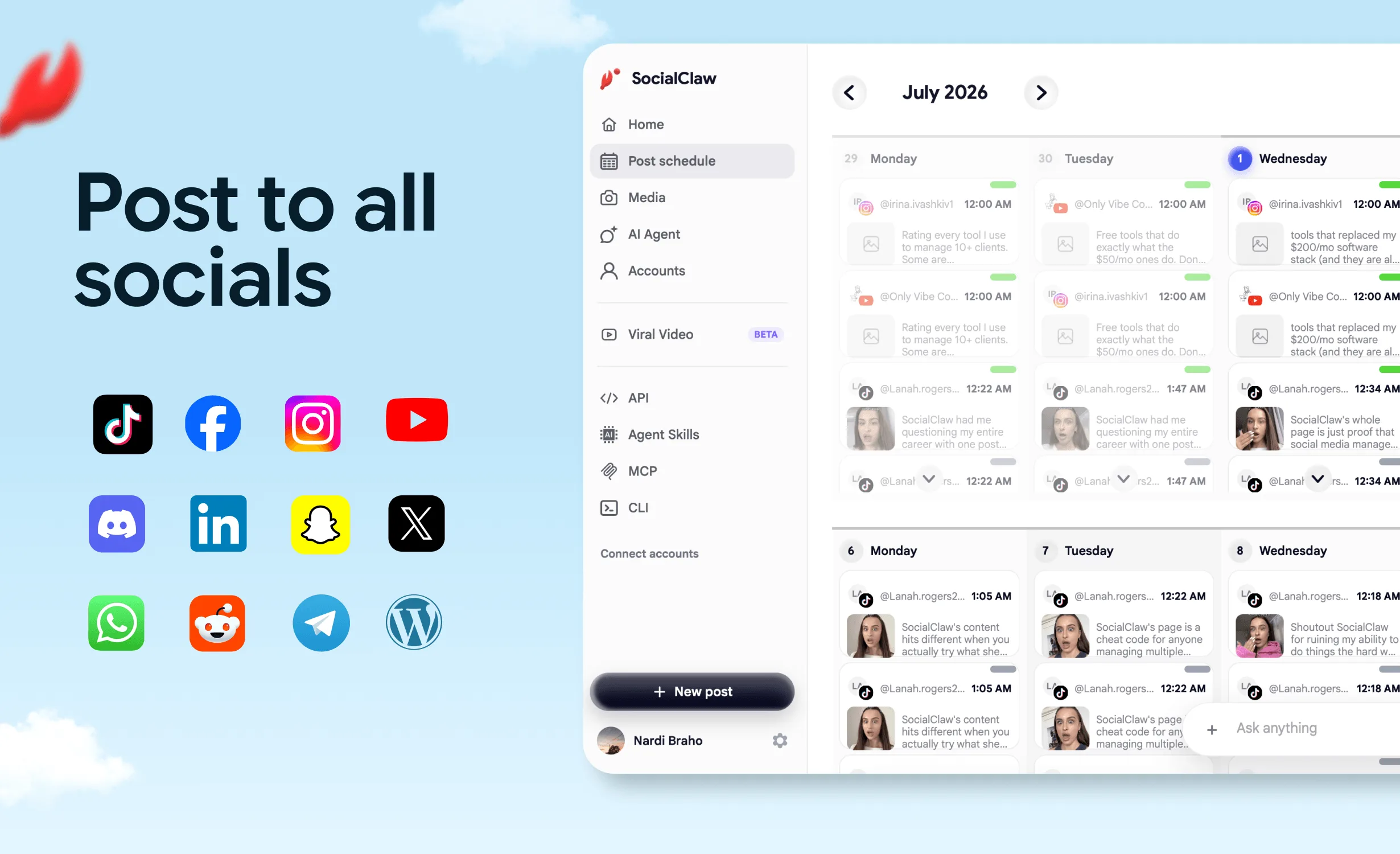
SocialClaw's connector covers 11 platforms: X, LinkedIn (profiles and pages), Instagram professional accounts, Facebook Pages, TikTok, Discord, Telegram, YouTube, Reddit, WordPress, and Pinterest. Everything runs through official platform APIs — no browser automation, nothing that risks your accounts. If you want the full landscape of publishing connectors first, the hub article ranks the best social media MCP servers.
How do you set it up? (The 3-minute walkthrough)
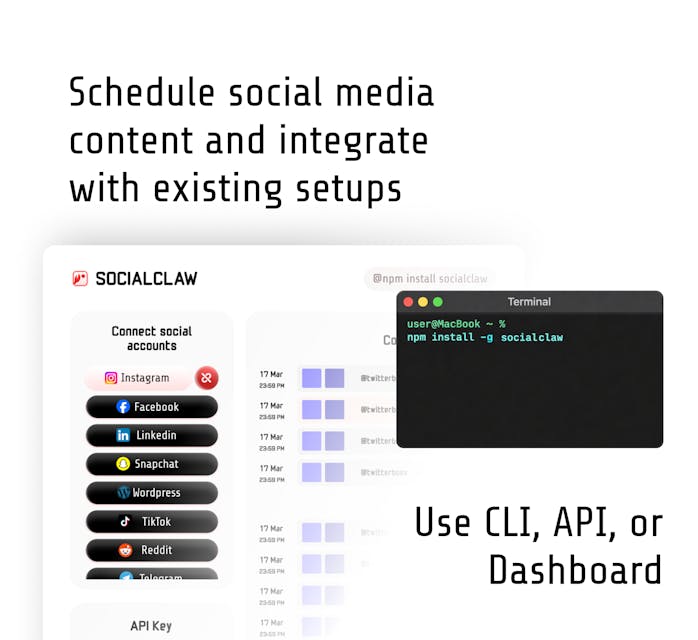
Step 1 — connect your accounts once (about 2 of the 3 minutes). Create a free account at getsocialclaw.com, open the dashboard, and connect each social account via OAuth — the normal "log in and approve" flow you've done for other apps. Then copy your workspace API key (it starts with sc_live_).
Step 2 — add the connector config. Open Claude Desktop's settings, go to the Developer section, and edit the config file. Paste this:
{
  "mcpServers": {
    "socialclaw": {
      "command": "npx",
      "args": ["-y", "socialclaw", "mcp"],
      "env": {
        "SOCIALCLAW_API_KEY": "sc_live_your_key"
      }
    }
  }
}
Replace sc_live_your_key with your actual key. If the file already has an mcpServers block, add the "socialclaw" entry inside it. (This uses npx, which ships with Node.js — if Claude Desktop reports it can't find the command, install Node.js from nodejs.org and restart.)
Step 3 — restart and test. Quit Claude Desktop fully and reopen it. You should see SocialClaw's tools available in the chat. Test with:
"List my connected social accounts."
If Claude returns your accounts, you're done. Total keystrokes: one JSON paste and one API key.
One security note: the API key lives in that config file — never paste it into a chat message. Config is private; conversations shouldn't carry credentials.
What prompts work best on day one?
The pattern that works is context in, review, then schedule — three prompts you'll reuse constantly:
Repurposing:
"Here's the blog post we published today: [paste]. Draft an X thread (5 posts max) and a standalone LinkedIn post. Different angles, not copies. Show me both before doing anything."
Weekly batch:
"I need 3 LinkedIn posts and 3 X posts for next week from these product notes. Draft all six, and after I approve them, validate and schedule spread across Mon/Wed/Fri mornings."
Verification:
"Check the status of everything scheduled this week. Anything that failed or didn't deliver, tell me why."
That last one matters more than it looks. A platform accepting a post is not the same as publishing it — TikTok, for example, can accept a post and then reject it during processing. SocialClaw exposes run_status and post_attempts so Claude can confirm actual delivery instead of assuming success.
Why should you review before publishing?
Because the failure mode of AI publishing isn't usually a technical error — it's a post that's fine but not yours. Slightly off tone, a claim you wouldn't quite make, an emoji you'd never use. Caught in chat, it's a ten-second edit. Live on your company LinkedIn, it's a problem.
So build the habit from day one:
- Draft in chat — Claude writes, you read.
- Edit conversationally — "cut the second paragraph, make the CTA softer."
- Validate — Claude runs
validate_scheduleso platform rules (character limits, media requirements) are checked before anything is queued. - Then apply — only after your yes.
You can loosen this over time — low-stakes channels like Discord or Telegram are natural places to allow more autonomy, while LinkedIn stays human-approved. The deeper question of guardrails is covered in is it safe to let an AI agent run your social media.
What are the gotchas nobody mentions?
- Instagram requires a professional account. Personal Instagram accounts cannot be posted to via API — that's Meta's rule, not a connector limitation. Convert to a business or creator account (free, in the Instagram app) before connecting.
- TikTok photo posts reject PNG files. TikTok's API accepts JPEG/WebP only for photos and fails PNGs with
file_format_check_failed. SocialClaw auto-converts hosted images via a?format=jpegparameter, so in practice Claude handles this — but if a TikTok photo post ever fails, this is the first thing to check. - "Accepted" is not "published." Ask Claude to verify delivery on anything important.
- Upload media once, reuse everywhere. SocialClaw hosts uploaded media and returns a stable URL, so one screenshot can back posts on five platforms without re-uploading.
FAQs
Do I need to know how to code to use Claude Desktop connectors?
No. The setup is a single copy-paste into a config file — the JSON block in this guide is the entire technical part. After that, everything happens in plain-language chat.
Is Claude Desktop's connector the same as the Claude Code setup?
Same service, different client. Claude Desktop uses the JSON config above; Claude Code (the terminal tool) adds the hosted endpoint with one command. Both talk to the same SocialClaw workspace, so accounts connected once work in both. The full comparison of setups is in how to post to social media with Claude.
Can Claude publish without asking me first?
Only if you prompt it that way. The workflow this guide recommends keeps a human approval step before apply_schedule is called. Many teams keep review for public-facing platforms and allow direct posting to internal ones like Discord or Telegram.
Which platforms does this support?
X, LinkedIn (profiles and pages), Instagram professional, Facebook Pages, TikTok, Discord, Telegram, YouTube, Reddit, WordPress, and Pinterest — all via official platform APIs.
Does this work on the free tier?
Yes — SocialClaw has a free tier, so you can run the full setup and test the workflow before paying anything.
Where do my account passwords go?
Nowhere near Claude. Your social accounts connect to SocialClaw via OAuth (the platforms' own login flows), and Claude authenticates to SocialClaw with the workspace API key in your config file. Claude never sees your social passwords, and the key never appears in chat.