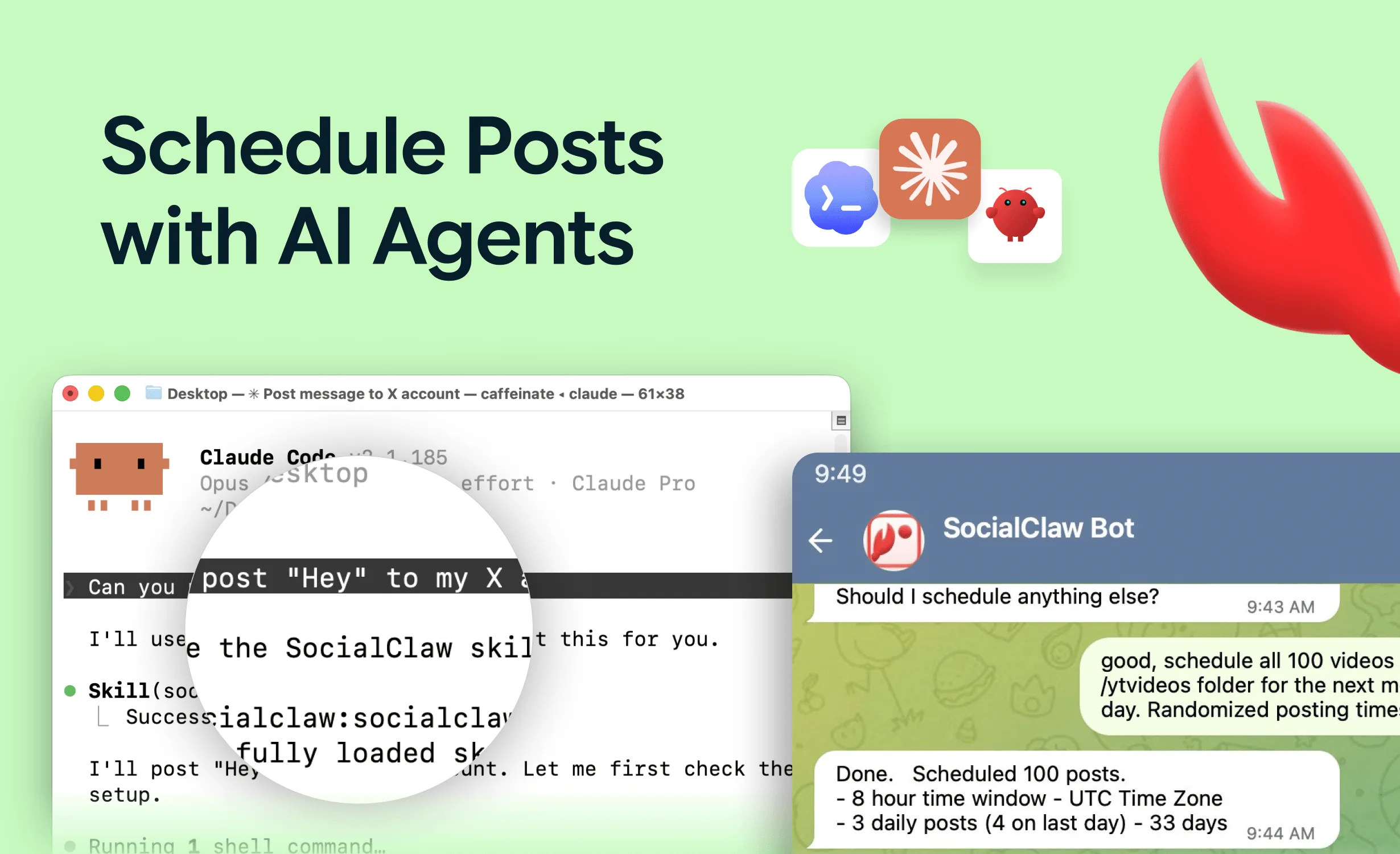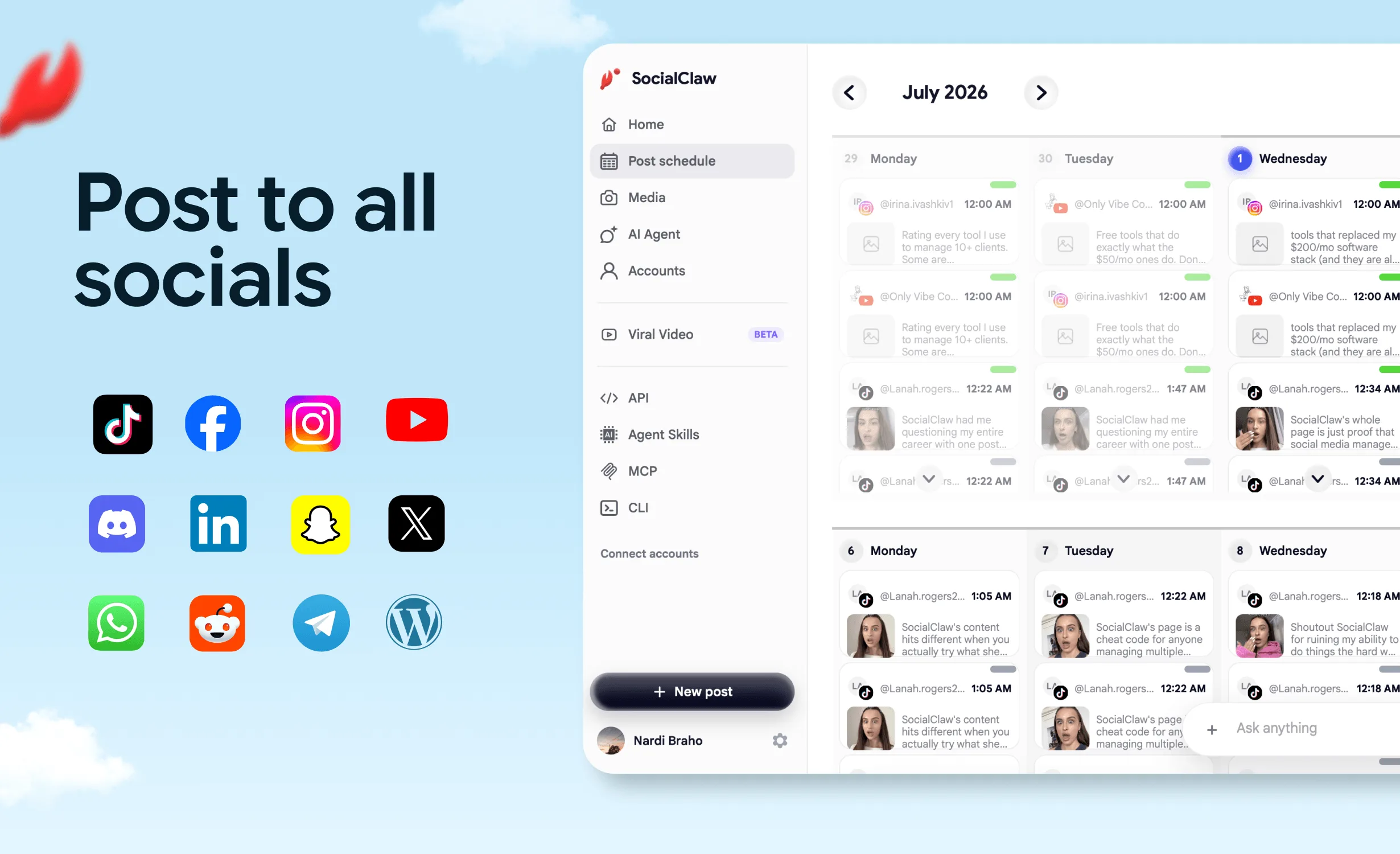
























If you are a developer, the browser is the slowest part of your social media workflow. Log in, click through a composer, upload the image again, pick a date from a widget, repeat for every platform.
The same job from a terminal is one file and two commands: describe the posts in JSON or YAML, validate, apply. It is scriptable, diffable, cron-able, and it works identically from your laptop, a CI runner, or an AI agent's shell.
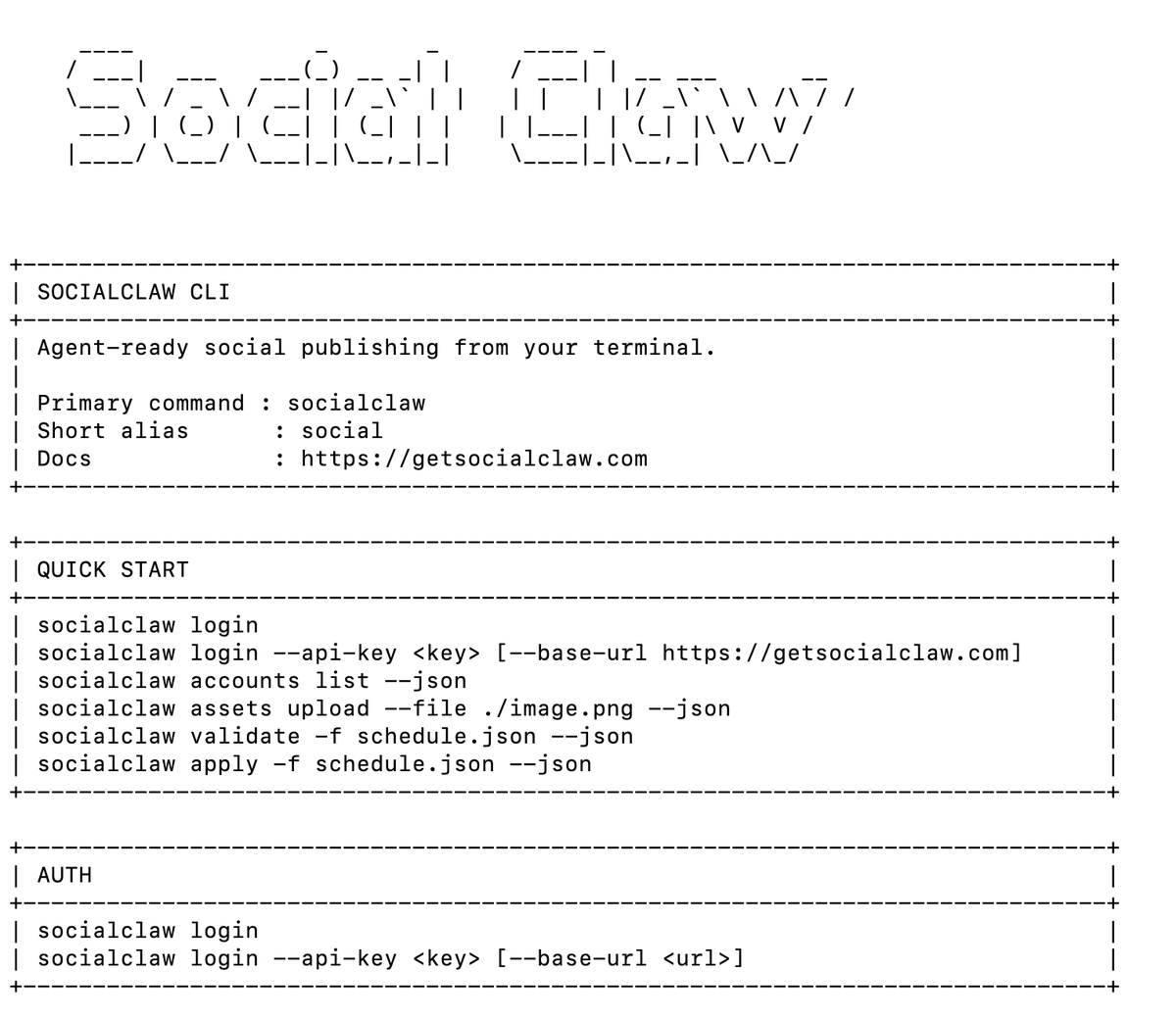
This guide covers the full command-line workflow with the socialclaw CLI (npm package socialclaw, short alias social): authentication, writing schedule files, uploading media, validating before publish, and the scripting patterns - cron, batch generation, delivery verification - that make it a real pipeline rather than a novelty.
Nardi Braho - July 4, 2026
TL;DR - the whole workflow
>
```bash
npx -y socialclaw login --api-key sc_live_your_key
socialclaw accounts list --json
socialclaw assets upload --file ./image.png --json
socialclaw validate -f schedule.json --json
socialclaw apply -f schedule.json --json
socialclaw status --run-id <run-id> --json
```
>
Every command takes
--jsonfor machine-readable output, which is what makes it scriptable.
How do you set up a social media CLI?
Install nothing, or install globally - both work:
# one-off
npx -y socialclaw --help

# or global
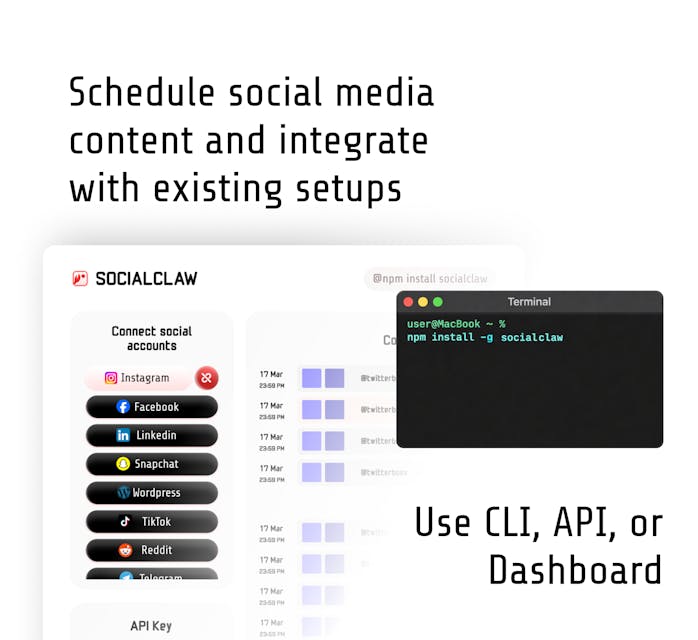
npm install -g socialclaw
Authenticate with a workspace API key from the SocialClaw dashboard:
socialclaw login --api-key sc_live_your_keyConnect accounts once in the dashboard (OAuth for X, LinkedIn, Instagram professional, Facebook Pages, TikTok, YouTube, Reddit, Pinterest; token-based for Telegram and Discord), or start a connection straight from the terminal:
socialclaw accounts connect --provider x --open
socialclaw accounts connect --provider telegram --bot-token <token> --chat-id @yourchannel
Then confirm what the workspace can see:
socialclaw accounts list --json
socialclaw accounts capabilities --provider tiktok --json
The capabilities command is worth a habit: it tells you what each connected account actually supports (media shapes, text limits) before you write a schedule that fails.
How do you write a schedule file?
A schedule file is the unit of work: a timezone plus a list of posts, each targeting a connected account by a stable ID like x:@yourhandle or linkedin:member:abc123. JSON and YAML both work.
{
  "timezone": "UTC",
  "posts": [
    {
      "account": "x:@yourhandle",
      "name": "Launch v2",
      "description": "Faster scheduling + analytics. Ship notes in thread.",
      "media_link": "https://getsocialclaw.com/media/asset_101/dlv_101/launch.png",
      "publish_at": "2026-07-10T15:00:00Z"
    },
    {
      "account": "linkedin:member:abc123",
      "name": "Launch v2 - LinkedIn",
      "description": "We just shipped v2. Here is what changed and why.",
      "publish_at": "2026-07-10T15:30:00Z"
    }
  ]
}
Media comes from hosted assets - upload once, reference the returned URL in any number of posts on any platform:
socialclaw assets upload --file ./launch.png --json
# → returns asset id + a hosted URL to use as media_link
Because schedules are plain files, they belong in git. A week of content is a directory of YAML files with a review diff, not twenty browser sessions.
Why validate before you apply?
validate sends the whole schedule through the same checks publishing uses - account exists, payload shape matches the platform, media requirements met - without creating anything:
socialclaw validate -f schedule.json --json
socialclaw apply -f schedule.json --json
This is the step browser tools do not have and the reason CLI scheduling scales: a 40-post schedule either passes as a batch or fails loudly before anything publishes. apply also takes --idempotency-key, so a re-run of the same script cannot double-post:
socialclaw apply -f schedule.json --idempotency-key launch-v2 --jsonFor campaigns you want reviewed first, preview and draft flows exist too:
socialclaw campaigns preview -f schedule.json --json
socialclaw publish-draft --run-id <run-id> --start-at 2026-07-11T09:00:00Z
How do you verify posts actually published?
apply returns a run ID. The run is the inspectable object:
socialclaw status --run-id <run-id> --json
socialclaw posts list --run-id <run-id> --status failed --json
socialclaw posts attempts --post-id <post-id> --json
socialclaw retry --post-id <post-id> --json
Platform "accepted" is not the same as published - TikTok in particular can accept a post and reject it during processing. status and posts attempts show real delivery state per post; retry re-runs just the failures.
What scripting patterns actually get used?
Cron: the evergreen queue
The classic pattern - a script picks the next schedule file from a queue directory and applies it:
#!/usr/bin/env bash
set -euo pipefail
next=$(ls queue/*.json | head -n 1) || exit 0
socialclaw validate -f "$next" --json > /dev/null
socialclaw apply -f "$next" --idempotency-key "$(basename "$next" .json)" --json
mv "$next" published/
# weekdays at 08:45 local time
45 8 * * 1-5 /home/me/social/publish-next.sh >> /home/me/social/publish.log 2>&1Note the division of labor: cron decides when the script runs, but publish_at inside the schedule decides when posts go live. In practice you rarely need cron at all - apply the whole week's schedule on Monday and let the scheduler deliver it. Cron earns its place when the content is generated fresh each run.
Generate, then publish
Anything that prints JSON can feed the pipeline - a changelog parser, an RSS reader, or an LLM call that writes captions. Generate schedule.json, validate, apply. This is the backbone of posting your changelog from GitHub Actions.
jq for control flow
run_id=$(socialclaw apply -f schedule.json --json | jq -r '.run.id')
sleep 60
socialclaw status --run-id "$run_id" --json | jq '.'
CLI vs browser scheduler vs MCP agent
CLI (socialclaw) | Browser scheduler | MCP + AI agent | |
|---|---|---|---|
| Best for | Scripts, cron, CI, batch work | Visual calendar review | Agent-generated content |
| Schedule 40 posts | One file, two commands | 40 composer sessions | One prompt |
| Version control | Yes - schedules are files | No | Prompt history only |
| Validate before publish | validate -f | Rare | validate_schedule tool |
| Delivery verification | status, posts attempts | Varies | run_status, post_attempts |
| Automation-friendly | --json everywhere | No | Native |
These are not competing options so much as the same engine with three faces - the CLI even ships the MCP server (socialclaw mcp) that Claude Code workflows use, and socialclaw install --claude sets up the Claude command. Start with whichever surface fits the task; the schedule format and the run model are identical underneath.
FAQs
Can I schedule social media posts from the terminal for free?
Yes - SocialClaw has a free tier. Install with npm install -g socialclaw (or run via npx -y socialclaw), log in with a workspace API key, and connect your accounts from the dashboard.
Which platforms can a CLI post to?
The socialclaw CLI publishes to 11 platforms through official APIs: X, LinkedIn (profiles and pages), Instagram professional, Facebook Pages, TikTok, Discord, Telegram, YouTube, Reddit, WordPress, and Pinterest.
How do I schedule recurring posts with cron?
Point a cron entry at a script that runs socialclaw apply -f <schedule> with an idempotency key. But prefer scheduling in the file itself via publish_at - apply a week of posts in one run and let the platform's scheduler handle delivery, retries, and verification.
Is posting from the command line against platform rules?
No. The CLI talks to platforms through their official APIs using accounts you connected via OAuth - the same mechanism browser schedulers use. What violates platform rules is browser automation and credential sharing, which official-API tools avoid by design.
How do I attach images or video from the CLI?
socialclaw assets upload --file ./image.png --json returns a hosted media URL. Reference it as media_link (or in an assets array for multi-image posts) in any schedule file - one upload works across every platform.
Can an AI agent use the same CLI?
Yes, two ways: agents with shell access (Claude Code, CI bots) can run the same commands with --json, or MCP clients can use socialclaw mcp as a stdio MCP server with the identical toolset. See the social media MCP server roundup for that setup.